
If you experience that there is no sound on your intervention videos it can be due to several things. Please follow the below guide before contacting support for help:
- Restart your laptop and make sure your computer is up to date
- Make sure your browser is updated. If you are on Chrome try Firefox or the other way around. Try to record a video from both browsers to see if there is a difference.
- Download Firefox: Download the fastest Firefox ever
- Download Chrome: Google Chrome - The Fast & Secure Web Browser Built to be Yours
- If you are using headphones
- If they are directly connected to your computer - try disconnecting them to see if it makes a difference
- If they are connected via bluetooth (wireless) - try turning off bluetooth to see if if makes a difference
- If you have airpods: Sometimes it is enough for the airpod case to just be open for it to take the sound permission - please make sure its closed with the airpods inside
- If you have an iPhone: Sometimes if you have an iPhone, it will automatically connect to your computer and sometimes steal the sound
- If you have any other Bluetooth devices connected eg a mouse or keyboard, try disconnecting those and see if it makes a difference.
- Check if you have another application open which also uses your camera and mic, eg if you have Zoom or Microsoft Teams open.
- If you have access to a different computer, try that one in case it is a device issue.
- Check the audio drivers on your computer for any updates.
- Double-check your videos before sending to avoid sending video with no audio to members.
If it still doesn’t work try and clear cache from your computer by following the below steps:
Chrome users:
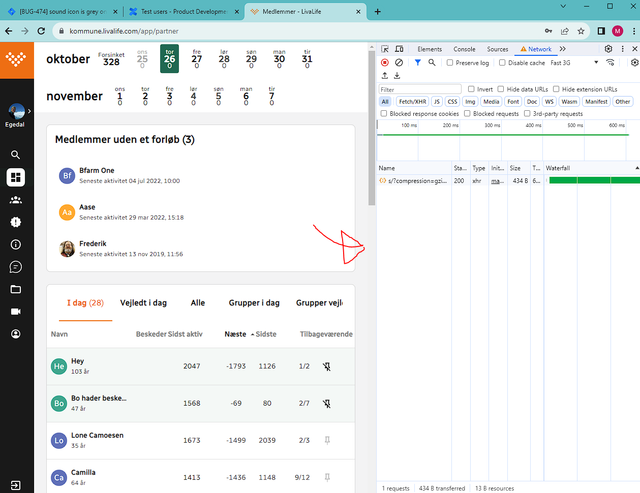
When you are on the advisorweb please press F12, this should bring up a side panel to the right. If F12 doesn’t work you can right click anywhere on the page and click “inspect” instead. Your don’t have to do anything in the side panel, but it unlocks new functionality in the browser.
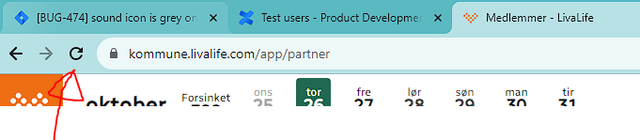
Right click the reload icon besides the URL.
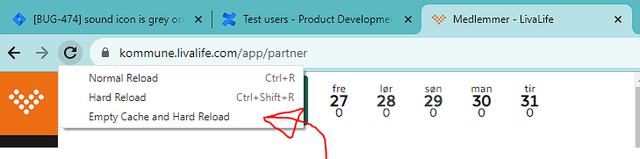
Then it opens a menu. Please click “Empty Cache and Hard Reload”
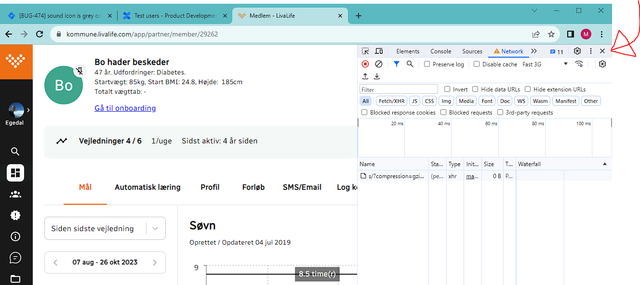
Close the side panel by pressing the F12 again on the small x in the top right corner.
Firefox users
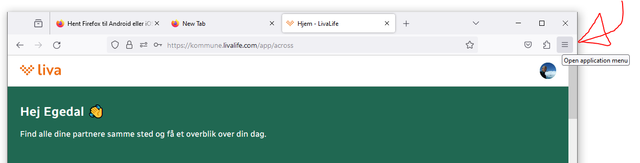
Click the three lines icon in the top right corner and select “settings”
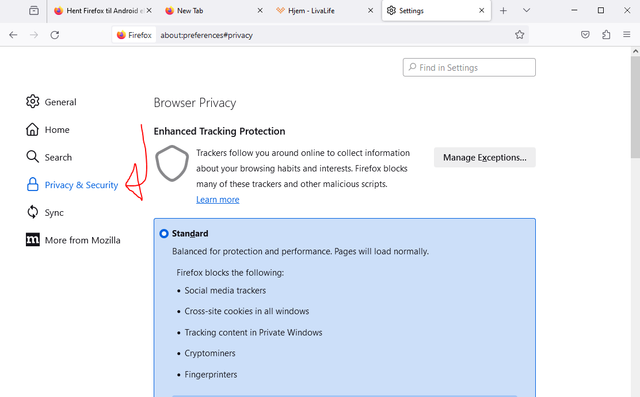
Select “Privacy and Security”
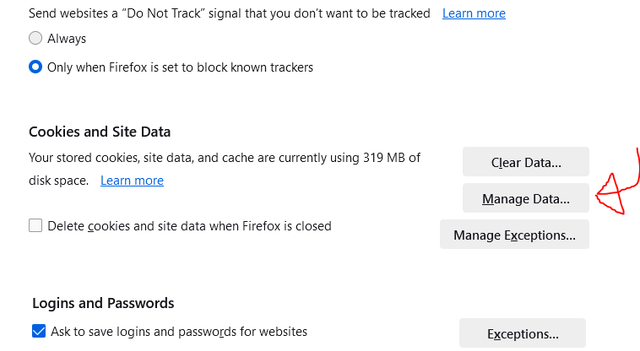
Scroll down till you find Cookies and Site data
Find the Livalife.com entry on the list and select. Then click save changes.
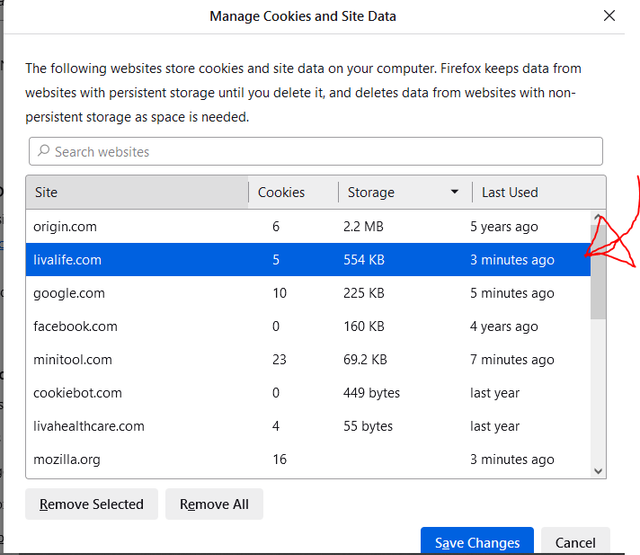
You can now close this tab and refresh the advisorweb page.
If you still need to report a bug:
Please use the tech issue report form below. You don’t also need to send an email when you have completed the form. One of the team will be in touch if they require more information or to give you an update on when the issue is resolved.